Creating a Wallet
Your Frostsnap devices work together to create a multi-signature Bitcoin wallet using Distributed Key Generation (DKG). During this process, each device generates its own key share - no single device ever holds the complete private key.
What You'll Need
- Your Frostsnap devices
- The Frostsnap app installed on your phone or computer
Steps
1. Start Wallet Creation
Open the Frostsnap app and press Create multi-signature wallet.
2. Name Your Wallet
Choose a name for your wallet. This name will appear in the app and on your recovery cards, so pick something memorable.
3. Connect Your Devices
Plug in the Frostsnap devices that will be part of this wallet. Devices connect together in a daisy chain using their built-in USB-C ports.
If this is your first time using these devices, your phone may ask you to allow the Frostsnap app to access the USB connection.
4. Continue with Devices
Once all devices are connected, press Continue to proceed with the detected devices.
5. Name Each Device
Give each device a name that helps you remember where you plan to store it. For example: "Home", "Office", "Hideout".
6. Choose Your Threshold
Choose how many devices need to sign in order to spend your Bitcoin. For example, with three devices you might choose a 2-of-3 threshold - meaning any two of your three devices can authorize a transaction, and you can lose one device without losing access to your funds.
7. Generate Keys
Press the button to begin key generation. Your devices will run a distributed key generation ceremony, where each device creates its own key share and contributes to the group's shared public key.
8. Verify the Security Check
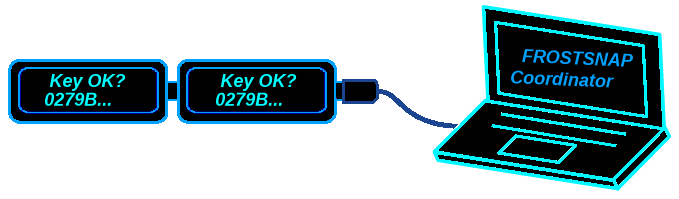
At the end of key generation, you will be shown a security check code. This code verifies that every device has been honest during the process. Check that the code displayed on each device matches the code shown in the app.
9. Confirm on Each Device
After verifying that all codes match, hold to confirm on each device's screen. You can press on the hold area shown on the device display.
10. Done
Your multi-signature wallet has been created. You can now unplug your devices. Before sending Bitcoin to this wallet, we strongly recommend backing up your devices.